Guides ·
How to install ComfyUI step by step
Install Comfy Desktop, load a template workflow and generate your first image without drowning in nodes.
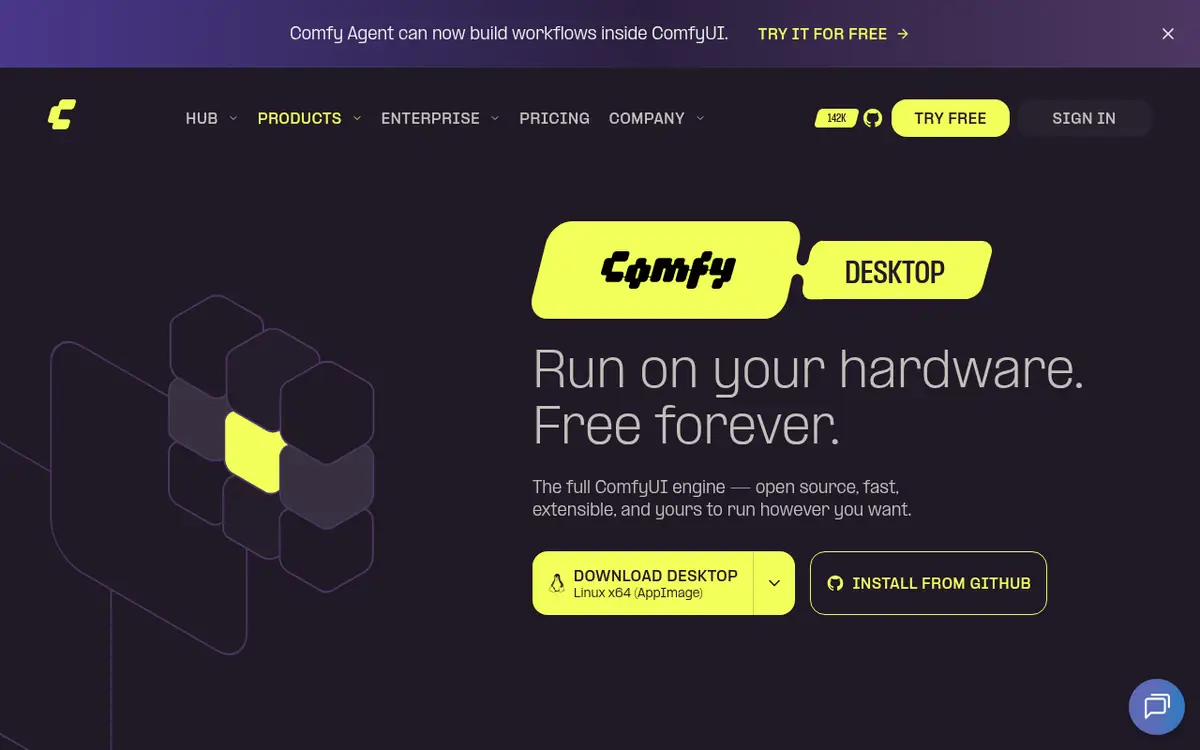
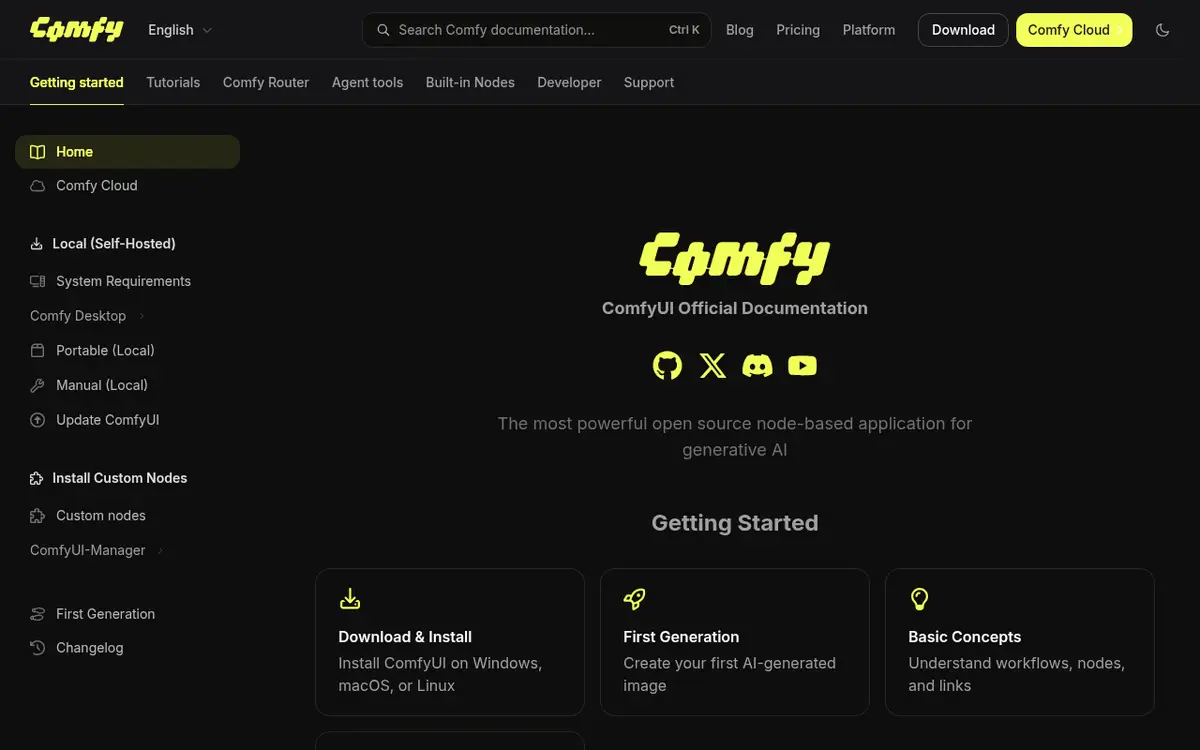
ComfyUI is a node-based interface for image and video AI. This guide gets you from zero to a first image with Comfy Desktop. Start at comfy.org.
Hardware
A modern NVIDIA GPU with enough VRAM is the comfortable path. CPU-only works but is slow. Reserve tens of gigabytes for models. 16 GB system RAM is a floor; 32 GB is happier.
Install steps
- Download Comfy Desktop from comfy.org and install it.
- Accept sensible defaults on first launch, then update.
- Load a simple community text-to-image template.
- Download any missing models via Manager or official prompts.
- Enter a short prompt and hit Queue.
Read the graph
You will usually see a checkpoint loader, positive/negative prompts, a sampler, a VAE decode and a save node. Each box is a step; wires are data. Changing one value and re-running beats guessing inside a black-box web app.
checkpoint → prompt → sampler → VAE decode → saveLicenses
Every checkpoint and LoRA ships with its own license. Some are personal-use only. For commercial work, read the model card and any commercial license offers announced on comfy.org.
Common failures
- Out of VRAM: lower resolution, batch size 1, smaller checkpoint.
- Missing nodes: install custom nodes from trusted sources only.
- Blank output: pin the seed and inspect intermediate previews.
Day-one goal: understand the graph, not win an art contest.
Tool page: ComfyUI. Next: free image generators.
Windows tips
Antivirus scans on model folders can crawl. Keep paths short. Update GPU drivers from the vendor. Avoid exotic characters in folder names when custom nodes misbehave.
macOS tips
Apple Silicon performance depends on backend support. Prefer workflows that understand Metal. Close browser GPU tabs when memory is tight.
First-week drills
- Same prompt, two seeds.
- Sweep CFG in small steps.
- Try an empty negative prompt once.
- Name outputs with date_seed_model.
Custom node hygiene
Stars on GitHub are not a security review. Prefer known registries, skim the code, install only what you need, and back up before experiments.
Sharing workflows
Ship the JSON plus model hashes and license notes. Drag this PNG fails when the teammate lacks the checkpoint.
What to learn next
ControlNet for pose, IP-Adapter for reference, then upscale chains. One technique per week beats installing everything tonight. When you ask for help, paste the full error, not it does not work.
Disk and backups
Keep large checkpoints on a dedicated drive. Zip your workflows weekly. Syncing multi-gigabyte models to consumer cloud storage is slow and pricey; sync the JSON graphs instead.
You can run multiple Comfy installs side by side, but watch for port and custom-node collisions. Try experimental nodes in a sandbox copy so daily production stays stable. Month-one goal: one reliable text-to-image graph, not every model on the internet.
When you ask for help, include a screenshot, version numbers and the full error text. Without that trio nobody can diagnose anything. Write the fix into your own notes so you do not pay the same tuition twice.
Where the files go
Most “model not found” errors are a folder problem. Checkpoints go in models/checkpoints, LoRAs in models/loras, VAEs in models/vae and upscalers in models/upscale_models. After copying a file, refresh the browser tab or press R in the interface so the dropdowns pick it up.
If you already have models from another app such as Automatic1111 or Forge, do not copy them twice. Rename extra_model_paths.yaml.example to extra_model_paths.yaml, point it at the old folders and restart. You save tens of gigabytes and keep a single library.
Pages mentioned in this guide
That's it for this one. More articles